E-Mail signatures
All our email communications should include the company's logo and means of contact, as well as the information (first name, last name and position) of the sender.
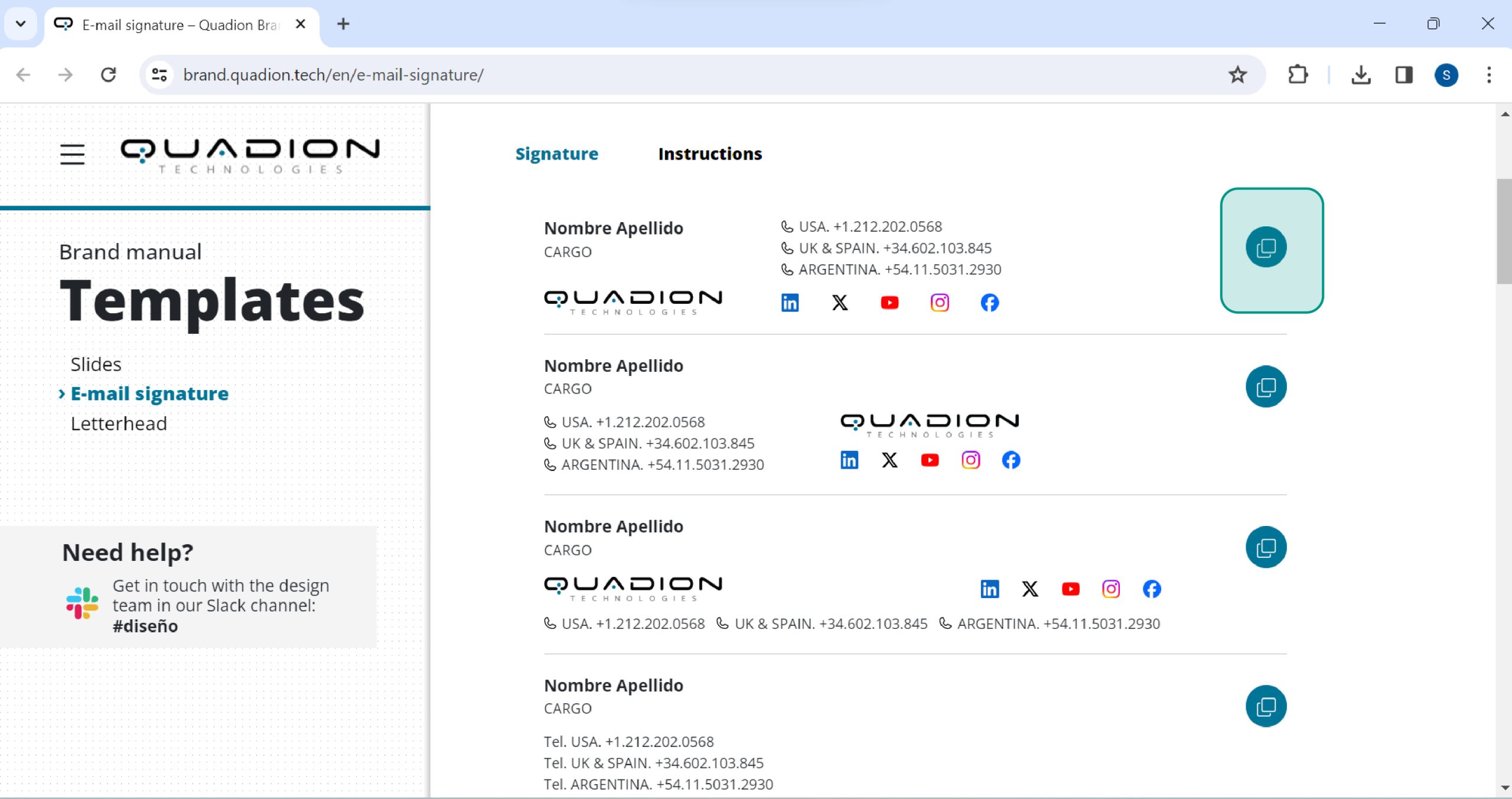
Find some signature options for you to add to your e-mails below. You can copy and paste them into your mailbox.
If you haven't done this before, here's a tutorial on how to do it.

 USA. +1.212.202.0568
UK & SPAIN. +34.602.103.845
ARGENTINA. +54.11.5031.2930





Nombre Apellido
CARGO
USA. +1.212.202.0568
UK & SPAIN. +34.602.103.845
ARGENTINA. +54.11.5031.2930
Nombre Apellido
CARGO
USA. +1.212.202.0568
UK & SPAIN. +34.602.103.845
ARGENTINA. +54.11.5031.2930
Nombre Apellido
CARGO
Tel. USA. +1.212.202.0568
Tel. UK & SPAIN. +34.602.103.845
Tel. ARGENTINA. +54.11.5031.2930
www.quadiontech.comAdding a signature to your Quadion e-mails
Step 1
Copy the signature you have chosen by clicking the buttonWe recommend doing this in Google Chrome.
Step 2
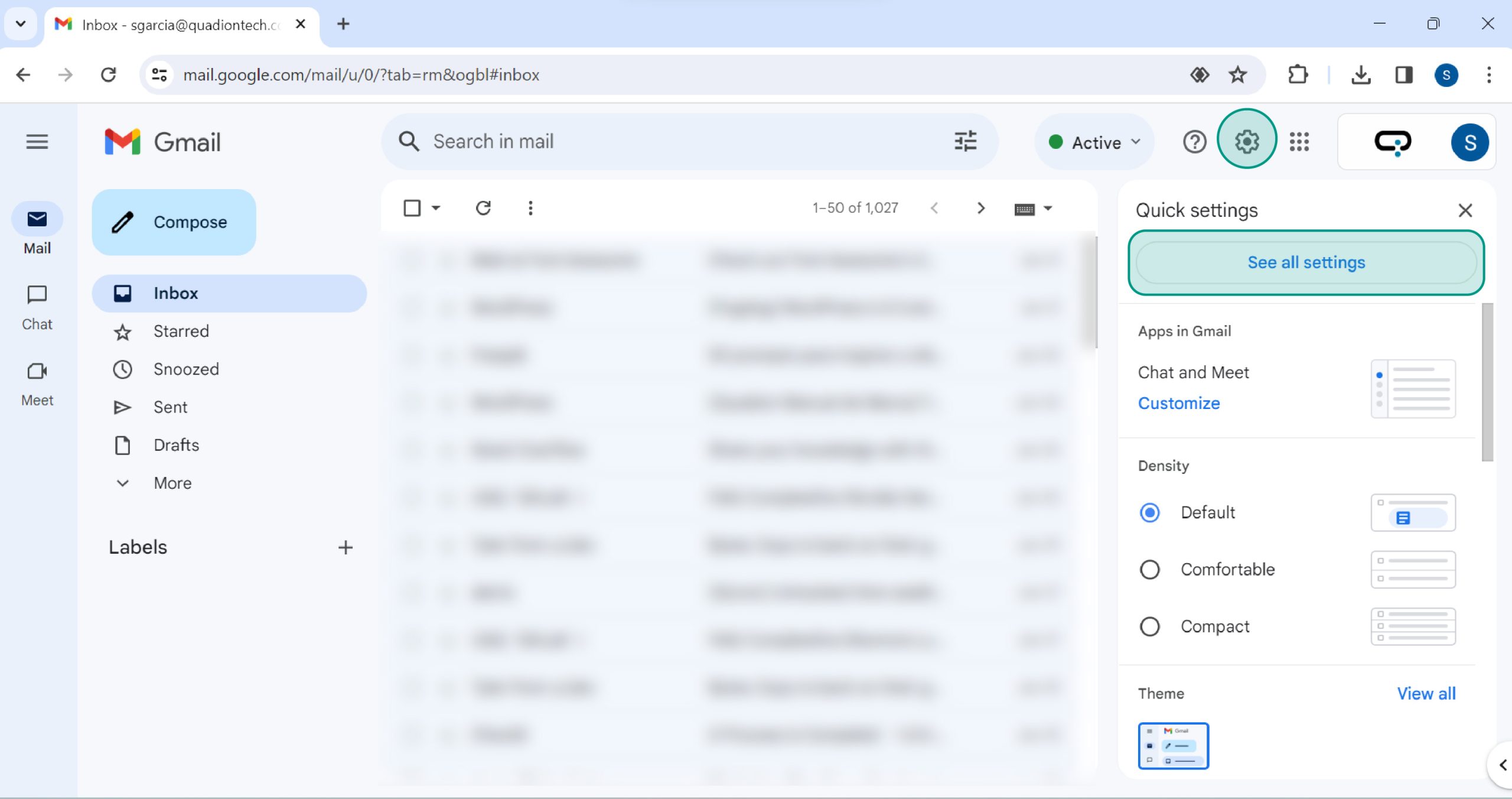
In your Quadion mailbox, click on the Settings section and then in the right pane click on See all settings.
Step 3
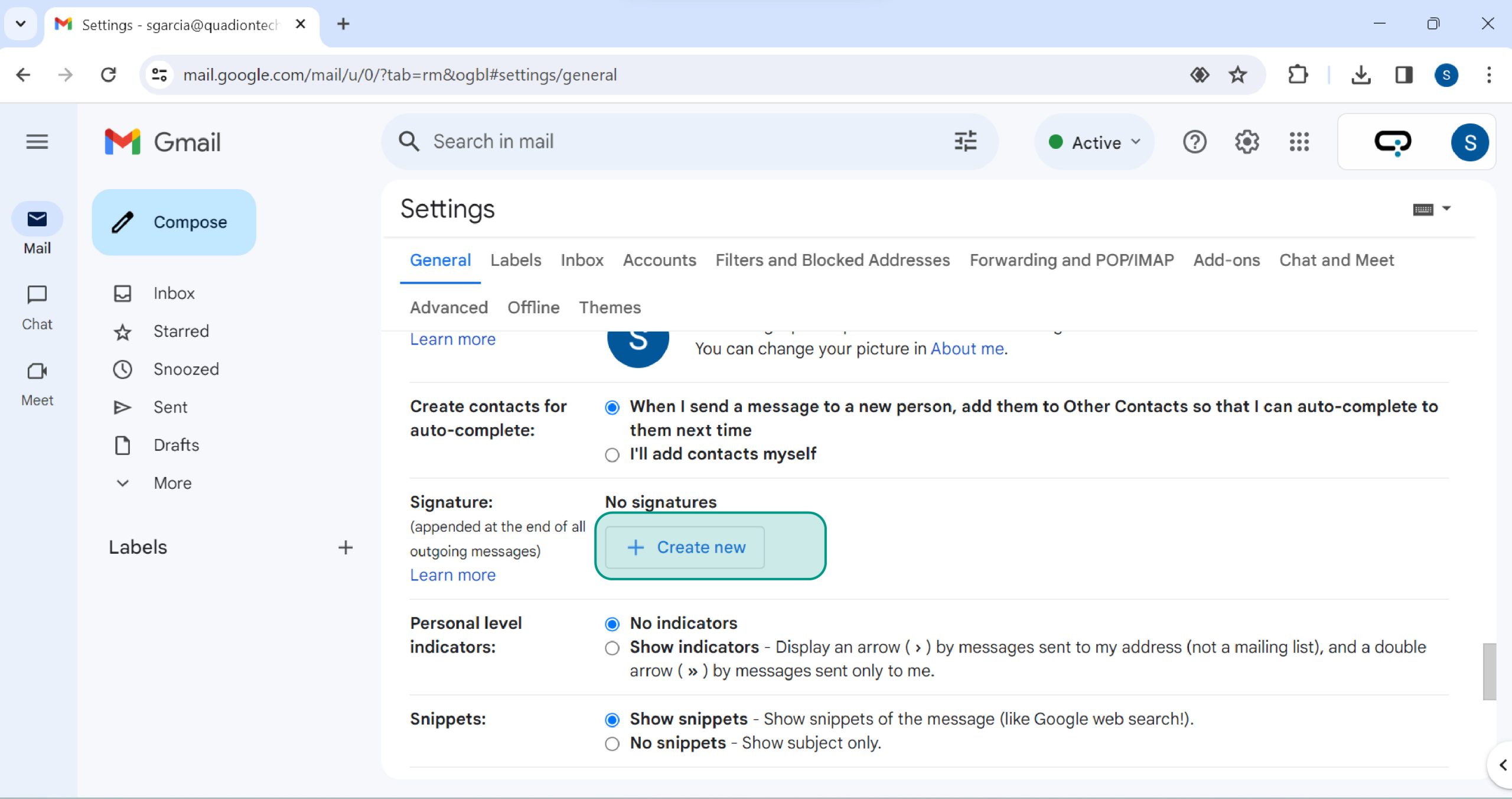
In the General tab look for the Signatures section and click on Create new.
Step 4
Pick a name for the new signature
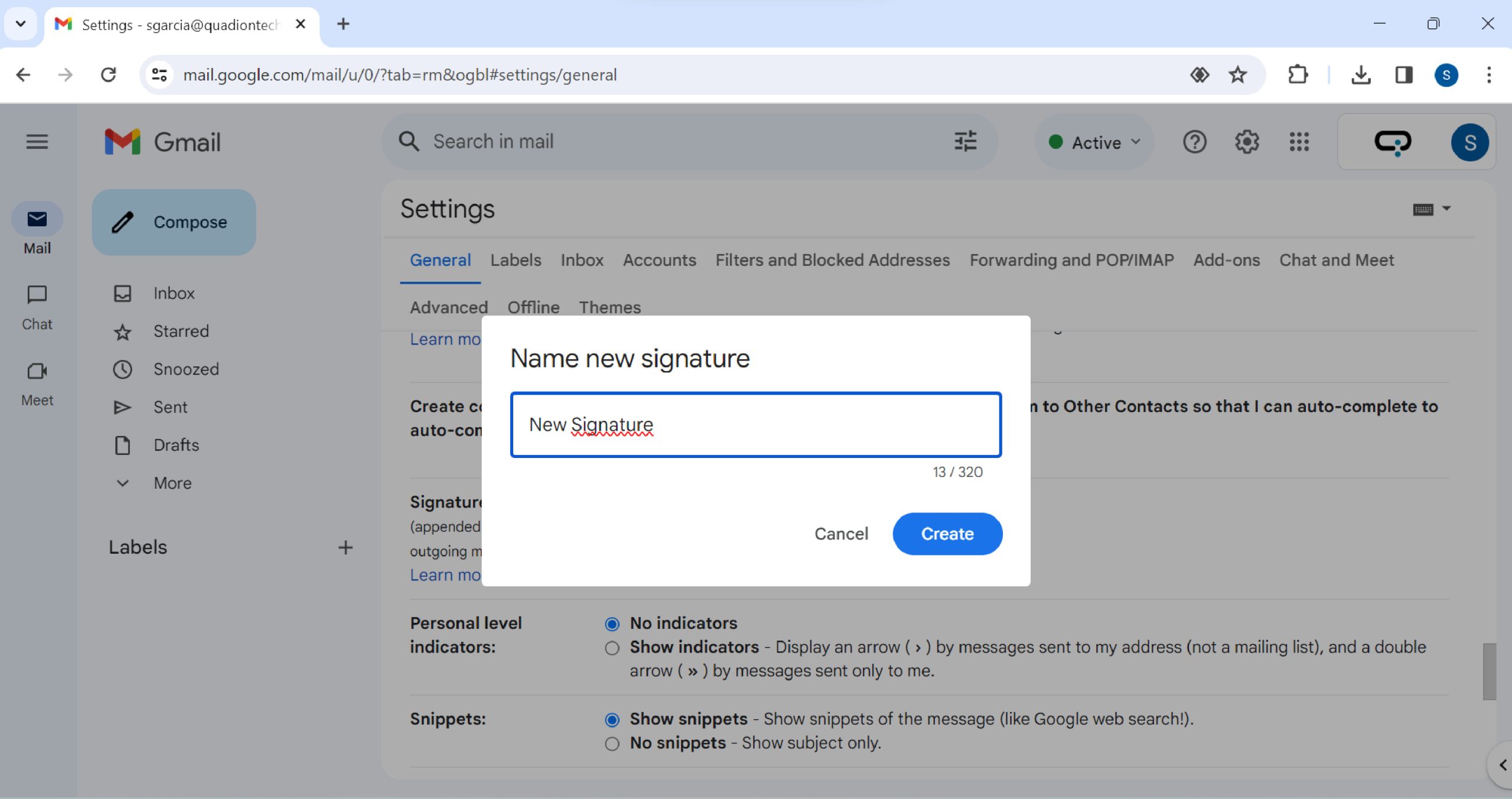
Step 5
Go to the text editor and paste the signature you copied from the Quadion Branding Manual.
Don't forget to update it with your first name, last name and job title
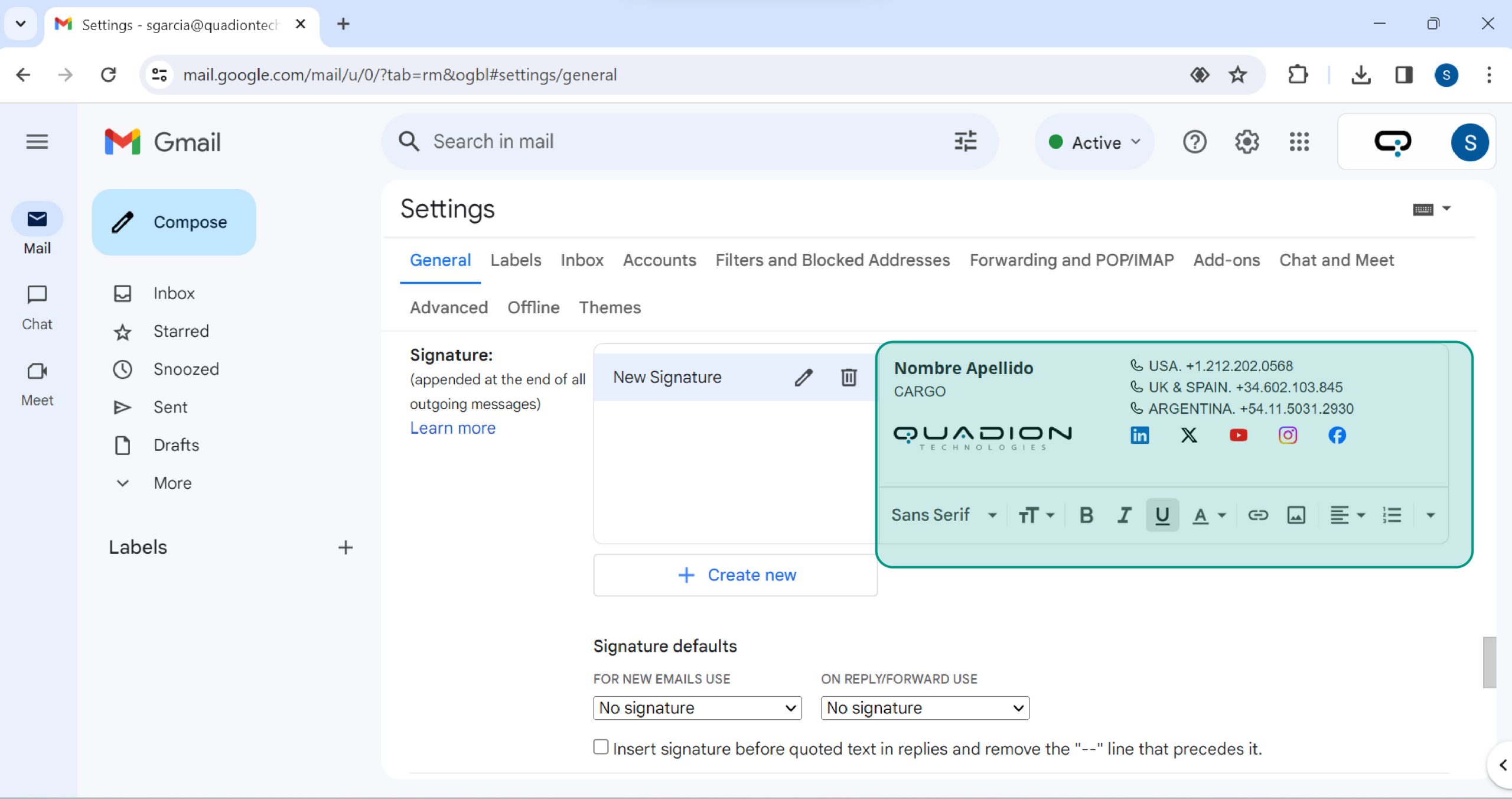
Step 6
Set the signature defaults and choose the signature you want to use when sending your emails.
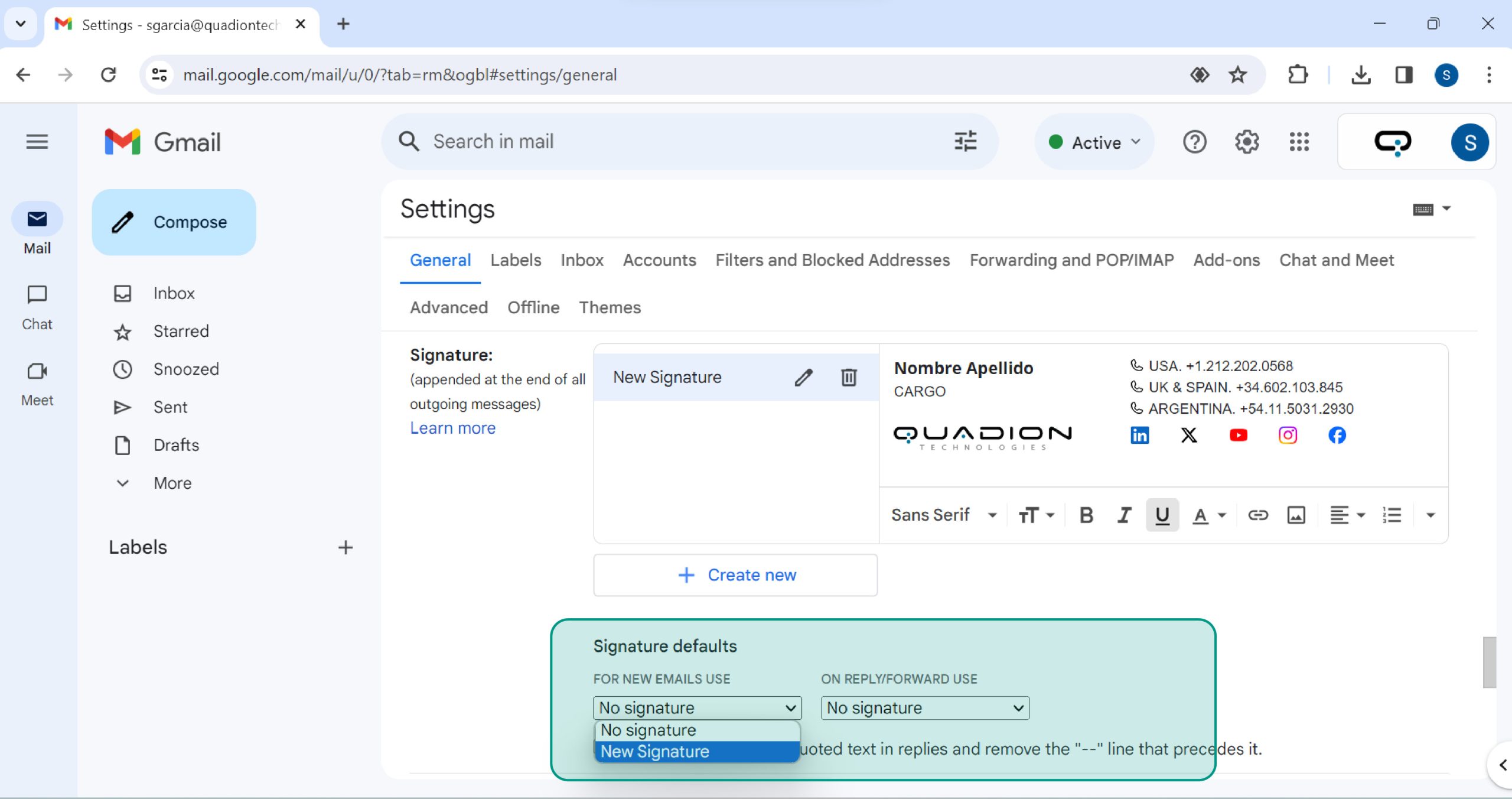
Step 7
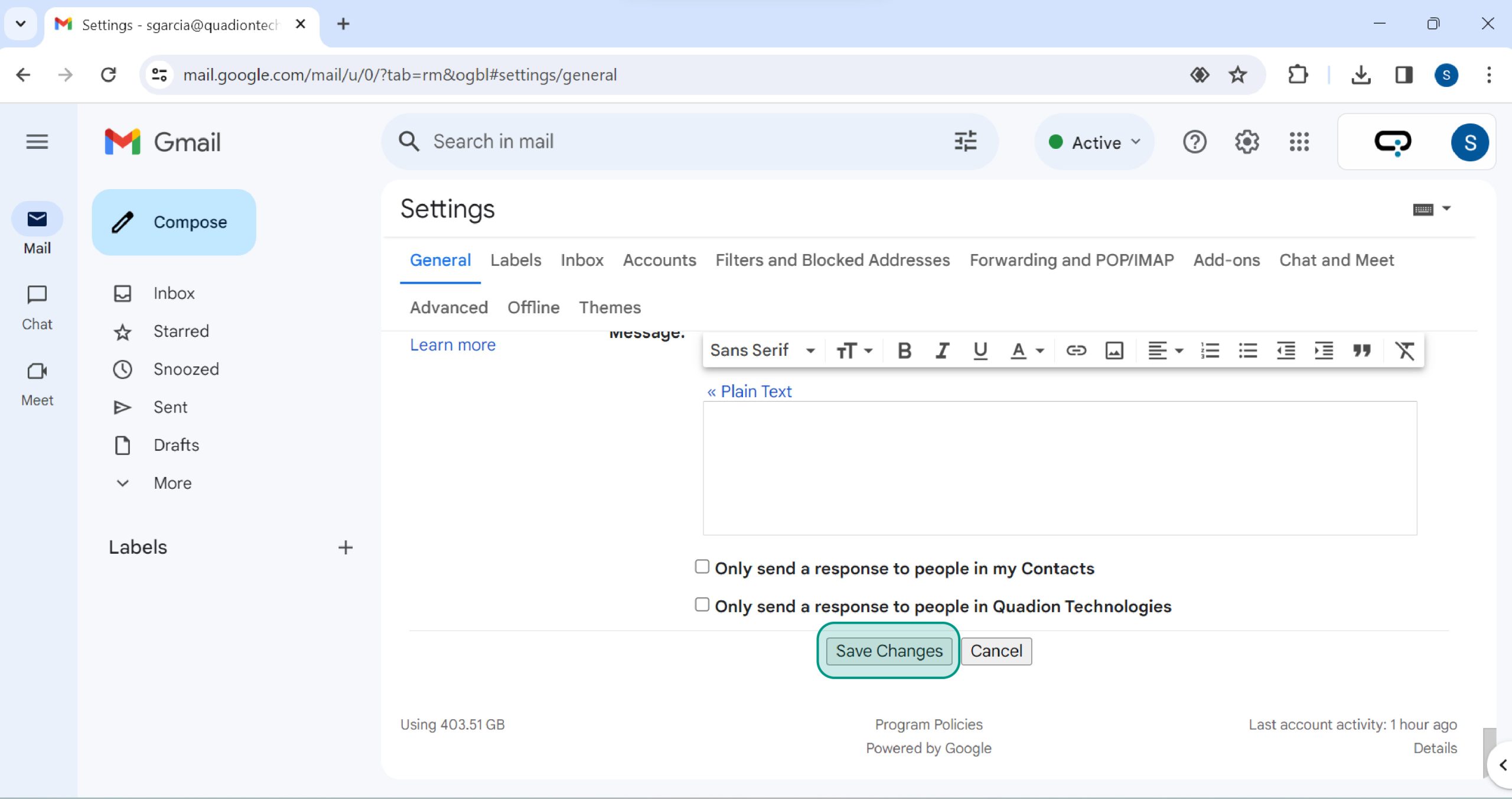
Save changes before leaving the configuration.